A Visit To The National Museum Of Computing

Earlier in the year, I visited The National Museum Of Computing, which resides within the Home of the Codebreakers, Bletchley Park. It’s pretty well put together and hosted by some very hard-working and dedicated volunteers.

I took a few pictures, although I was a bit limited by not having a lens particularly suitable for indoor work. I’ve since resolved that by grabbing a 35mm prime lens and I’m looking forward to trying it out properly!

The National Museum Of Computing - SignLorenz Cypher MachineTunny Machine 1Tunny Machine 2TypewritersColossus - "Turn it off and on again" ?
Colossus

Adding Instance Storage after upgrading a Micro instance on Amazon EC2

Cloud-Storage I recently upgraded a Micro (t1.micro) instance to a Small (m1.small) version on Amazon EC2. This was performed with no real trouble at all (Stop, Change Instance Type, Start). However, I noticed upon boot that I did not have any of the promised Instance Storage available to me. On the m1.small, 160 gigabytes is mentioned. Where was it?

It turns out that for EBS-backed AMIs (including Amazon Linux, the OS in use for this example) , the instance storage is not automatically baked in. It is possible to ensure it is added when starting a new VM, but I was never given an option to do this due to going down the upgrade path. It turns out it is not possible to add it to an instance that is already in operation. So, what to do?

Firstly, the official Amazon documentation: Adding Instance Store Volumes to an AMI.

These are the steps I needed to take, which I accomplished via the AWS Console rather than via the command line.

  1. Stop the Instance. You don’t have to do this prior to the next step, but for consistency, it is best you do.
  2. Create a Snapshot.
  3. Create a new AMI from the Snapshot (This is where the steps in the official guide linked above come into play). For the m1.small, I added two Instance Store Volumes (as you get a ‘swap’ partition as well).
  4. Create a new instance using your new AMI as the source.
  5. If relevant, re-assign any Elastic IP Address to the new instance.
  6. Start the new instance.
  7. You’re done!

Upon boot, Amazon Linux auto-detects the new available partitions.

The main storage partition:

$ df -h
Filesystem            Size  Used Avail Use% Mounted on
/dev/xvda1            7.9G  2.3G  5.6G  30% /
tmpfs                 829M     0  829M   0% /dev/shm
/dev/xvdb             147G  188M  140G   1% /media/ephemeral0

… and the swap partition:

[  169.078672] Adding 917500k swap on /dev/xvda3.  Priority:-1 extents:1 across:917500k SS

Easy!

Note that by default, Amazon Linux formatted the storage partition as ext3. You may well want to convert it to ext4 (I just reformat it here, so don’t do it this way if you’ve put data there!)

$ sudo umount /dev/xvdb
$ sudo mke2fs -t ext4 /dev/xvdb
mke2fs 1.42.3 (14-May-2012)
Filesystem label=
OS type: Linux
Block size=4096 (log=2)
Fragment size=4096 (log=2)
Stride=0 blocks, Stripe width=0 blocks
9773056 inodes, 39088128 blocks
1954406 blocks (5.00%) reserved for the super user
First data block=0
Maximum filesystem blocks=4294967296
1193 block groups
32768 blocks per group, 32768 fragments per group
8192 inodes per group
Superblock backups stored on blocks: 
	32768, 98304, 163840, 229376, 294912, 819200, 884736, 1605632, 2654208, 
	4096000, 7962624, 11239424, 20480000, 23887872

Allocating group tables: done                            
Writing inode tables: done                            
Creating journal (32768 blocks): done
Writing superblocks and filesystem accounting information: done     

$ sudo mount /media/ephemeral0

One final and standard warning regarding Instance Storage on EC2: It will be erased upon your instance Terminating, which could include a failure condition. As a result, never use it for data you rely on (use EBS instead).

Getting svn:externals right on the command line

We ended up with multiple projects needing access to the same set of internal modules. Rather than keep multiple copies of the same code in different Subversion repositories, it made sense to link the code in by way of the svn:externals property.

This took a few attempts to get right. The working propset line is below (remember to be in the directory you want to place the local directory first!):

svn propset svn:externals 'local_modules -r87 svn://subversion.hub.server/remote_repository/trunk/remote_modules' .
svn update
svn commit -m "Added svn:externals link to remote_modules, revision 87."

Some important notes:

  1. SPECIFY A REVISION NUMBER: This keeps the version of the modules in your local repository stable. They will not automatically update when a developer is fiddling around with the remote repository. Thus, things stay nicely consistent, and bringing in an updated set of modules is under your control (just update the property when ready).
  2. DO NOT CREATE THE LOCAL DIRECTORY FIRST: Subversion will create it for you. If it is already there, you will get lock errors. If for some reason the local directory is versioned, then you will need to delete it from Subversion first.
  3. LOOK AT THE QUOTES: Look at where the quote characters are. This is important. Ditto for the full stop at the end!

Happy Subversioning! Although Git is a lot friendlier with how it handles this sort of thing, with its equivalent of submodules.

Jenkins and archiving broken symbolic links

I am in the process of implementing Jenkins as a continuous integration system at work. It’s an incredibly extendable framework so just perfect for our needs.

We will be keeping things simple to begin with: Simply grabbing appropriately tagged code from Subversion and making it available for installation elsewhere. It will be handling multiple projects which will solve a current issue with each project having its own secret sauce build system. Centralisation is good!

However, I did encounter an issue with symbolic links. We had a few instances where the symbolic link referenced a location outside of the repository, which would not exist on the build server. Jenkins does not preserve symbolic links when archiving. Instead, it tries copying them… and in this example that results in an error.

The solution I have gone for is to:

  1. Get rid of those symbolic links where possible.
  2. Convert to relative links in the case where absolute links were making a repository not compatible with a neutral build server.

This works nicely.

I have received some advice on StackOverflow on this issue which has been useful. In particular, an alternative archiving system (such as tar) could preserve the symbolic links, although would need to be implemented at a build level.

In terms of a final installation package for the projects, we are going down the RPM route here, which looks like a happy medium. I don’t mind Jenkins effectively dereferencing symbolic links for installations: Permissions and the like are what we need to watch out for!

MongoDB: Adventures with sharded replica sets

One of the great things about MongoDB, and of course one of the key points in handling ‘Big Data’, is its handling of replication and sharding.

It is not within the scope of this particular post to describe the above concepts (follow the links!), although remember that replication is concerned with data security and sharding is concerned with data scaling.

It stands to reason that a combination of the two is required in order to have both security and scaling.

To get a sample environment up and running quickly, I have created a GitHub repository which brings up a simple sharded replica set example. It has two replica sets, each with three ‘mongod’ servers, and the required configuration and ‘mongos’ servers. It puts an appropriate amount of test data in to show the sharding in effect. It is easy to get up and running on a single machine, or VM if you prefer.

GitHub repository (includes documentation): sharded_replica_sets.

Enjoy, and please let me know if you have any comments.

Going Retro on GitHub

GitHub has been around for a while now, and I have finally got around to uploading some of my more retro projects to it.

Some are from my days of developing on the Amiga, and include code written in AmigaBASIC (shudder!), m68k assembly, Java and C.

The projects themselves range from IRC bots (good way of learning socket programming) to simple MUDs (ditto!).

Browsing GitHub is fantastic for digging out retro source code, including that of some Amiga scene demos. Perhaps one of the coolest items to make it up there in recent times was the original Apple II source code for Prince of Persia!

Check out my GitHub profile page, and say hello!

Migrating email to GMail

I recently moved extricate.org to sit on Amazon EC2. This meant I had to decide what to do with my email. Should I just leave it on Dreamhost and access it via IMAP?

In the end, I decided to enable Google Apps for my domain. Free for 10 users or less so that will do nicely. GMail has a fantastic interface nowadays and after using it for a while I was happy that I would use it instead of IMAP, although IMAP is on offer should it ever be needed.

Getting up and running was straightforward, with the main element being to point my DNS to the new servers. Google walk you through all this via their setup wizard, so well played to them there. One immediate issue was that my new email address already existed as a ‘personal’ Google account, and that conflict needed to be resolved. In the end I renamed that account, started a ‘blank’ new one, and migrated the data across.

I transferred most of my email from Dreamhost by using Thunderbird. Having enabled IMAP on GMail, the folders could be consolidated and dragged between accounts. This wasn’t particularly fast as it was reliant on my home broadband connection. When it came to larger folders, I needed a better way!

Take it to the cloud…

It made sense to perform the copying via my Amazon EC2 server, as it wouldn’t be constrained by my home network connection. It did mean finding some suitable Linux command-line software. I decided upon imapcopy. I downloaded it straight from the home site.

However, this software is quite old and does not support secure connections, as required by GMail’s IMAP servers! This is where stunnel came in, which may be installed from the Amazon Linux AMI repositories:

sudo yum install stunnel

Configuration guide: stunnel and imapcopy.

I then just needed to configure imapcopy (ImapCopy.cfg). Naturally, the DestServer had to be sent to ‘localhost:1143’ so that the routing occurred through the new tunnel. I also explicitly stated what I wanted to happen:

copyfolder INBOX.Sent
DstRootFolder “Migrated”

It was then just a case of running imapcopy and away it went! It worked flawlessly which meant that all my email was now accessible within GMail.

A successful migration!

Moving extricate.org to Amazon EC2

I have been continuing work with Amazon EC2 recently. I am a big cloud fan (evangelist?) and, as a result of that, it was time to eat my own dog food and move my domain over.

My host for a couple of years has been Dreamhost. They provide an excellent hosting service, including a very comprehensive control panel and secure shell access. Nothing wrong there at all: I just wanted to go down the Amazon route.

Another factor is that the Dreamhost servers are based in the US. This meant that the site always seemed slightly sluggish to me, so I was hopeful that moving hosting to Ireland (The ‘EU-West’ region in EC2 terms) would speed things up.

Instance and OS selection

It made sense to embrace the AWS Free Usage Tier, which meant I elected to go with a ‘Micro’ instance:

613 MB memory
Up to 2 EC2 Compute Units (for short periodic bursts)
EBS storage only
32-bit or 64-bit platform
I/O Performance: Low
API name: t1.micro

64-bit was a natural choice. There is no ephemeral storage with this instance size. That was fine by me, as I wanted to ensure that everything was secure in the event of the instance terminating for whatever reason. Hurrah for EBS!

I tried out two different Linux images: Amazon’s own flavour, and Ubuntu Cloud. There was not a great deal in it, and although I am more familiar with Ubuntu on a day-to-day basis, I went with Amazon Linux. It is optimised by them for their own platform and has a CentOS pedigree.

Getting up and running

The instance was very quickly provisioned. I followed the standard WordPress Installation Guide, which included getting Apache and MySQL up and running on the box. Both of those are in the Amazon repositories. WordPress itself I did directly from the source, copying themes, plugins and other content data from my old host via scp.

I needed to bring the old MySQL database across as well. A simple mysqldump got the required SQL which was trivial to import. I used phpMyAdmin to help out with user creation and permissions, as it is a lot friendlier than tapping things out on the command line.

Memory considerations

During testing, MySQL was terminated due to the instance running out of memory. By default, there is no swap space provided. Swap space is easy to provision if required, be that via a swap file or swap partition (allocating a new EBS volume).

However, it should be noted that using swap space will naturally increase I/O, along with charges!

I decided to keep things streamlined and not enable swap space. Instead, I toned down Apache’s memory usage, as by default it would spin up 10 servers to handle requests. I went with the following settings:

StartServers 2
MinSpareServers 1
MaxSpareServers 3
ServerLimit 8
MaxClients 8
MaxRequestsPerChild 1000

Everything has been stable since then.

CloudFront

WordPress a great cache plugin: WP Super Cache. I soon got this up and running, and took advantage of its CDN support. This allows it to rewrite wp-content URLs in order to be served up by the Content Delivery Network of your choice.

Here’s a good tutorial on this: ‘Setting Up Amazon CloudFront CDN in WordPress is Really Easy!’.

This handily takes further load off the micro instance, and therefore performance is improved.

Route 53 DNS

That just left DNS over at Dreamhost. Amazon offer this service as well, in the form of Route 53. I set up a Hosted Zone for extricate.org and it was very quick to set up the required entries (pretty much just copying over from Dreamhost). The zone was instantly provisioned and worked perfectly once I instructed my registrar to use the new servers. Very easy!

The results…

I’m happy to report that everything just works! Performance is snappier as well, although I am sure that the server now sitting more local to me is a big boost here. I also love having full ‘root’ access over the system now.

That did leave migrating my email, and that is a future article!

Bringing a Netbook back from the dead

Accidents will happen. Right at the end of the tremendous TruLondon unconference, I managed to drop my Netbook. It was only from chair height but it sadly struck the metal parts of the chair on the way down.

Ouch.

It powered up fine but half the screen was either glowing white or corrupted. That was promising in a way as there was no obvious structural damage. As a result, I attempted the LCD Massage trick. This involves gently massaging the LCD to try and prod it back to life (DO NOT TRY THIS AT HOME). It managed to resuscitate half of the damaged area.

“Great! I am the master of technology!”, I thought.

It did not bring results on the remaining dodgy part of the screen. I pushed a little harder. Still nothing. I pushed slightly harder and….. CRRRAAAAACCCCCCKKK!

Oops.

On the plus side, half of the screen was still working.

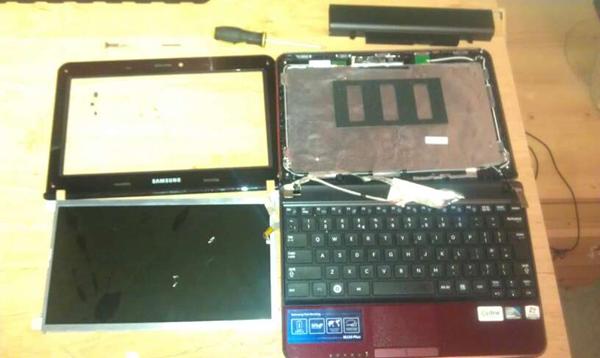
In pieces...

Thankfully, screens are pretty easy to replace on these devices. I ordered a replacement screen for my Samsung N220 Plus from laptopscreenonline.com for just under £50.

I was very impressed with their service as it arrived Next Day. In classic tradition, fitting it was the reverse of taking the broken one out, and everything worked great first time.

Unexpected bonus: The replacement screen is of the reflective variety which brings out the colours better. Not everyone likes the shiny screens but I do!

Good as new!

Now to give the poor machine some tender loving care…

Books: Secret History of the Internet and Virtual Shadows

I picked up some books recently based on some reviews via the British Computer Society.

On the Way to the Web: The Secret History of the Internet and its Founders details the development of the various online systems which paved the web to the Internet and web that we know today. This was not a linear progression. The classic bulletin boards and the like (based on screeching modems, ah memories…) were not on the same path and eventually fell by the wayside but certainly gave many their first tastes of the online world. Oh, and the telephone bills to match.

Yes, the likes of Prestel and Delphi do feature. It is an interesting read and also details the political and personal wranglings that were going on. It is a shame that Compunet (my first online experience) is not featured but I did learn about the more official Commodore 64 services that existed.

Virtual Shadows: Your Privacy in the Information Society deals with, predictably, privacy in the Information Society! Some of the material will be a bit obvious to those with a background in this stuff (e.g. why blogs are popular and how they work) but some of the detail in risk assessment of the information you leave online is absorbing. Naturally, social networking sites form a key part of this as does the protection of children. I found the later parts of the book the best as they dealt with the current and upcoming threats to our privacy in general, be they ID cards or the ‘feature creep’ of CCTV and other surveillance systems. I had never heard of ‘Sousveillance’ before either!

I recommend both books so check them out.